Showing posts with label Computer Networking. Show all posts

Saturday, April 21, 2012

What is the difference between World Wide Web (WWW) and HTTP?


If you take a look at the address bar of your web browser, most probably you will see at least one of the two terms HTTP and WWW. Simply this implies that both HTTP and WWW are closely related to the internet, or the large computer network that you use to read this article. While HTTP is a standard protocol used to communicate on the internet, WWW is a large collection of hypertext documents accessed via the internet. WWW indicates that the web site is a part of the World Wide Web, and HTTP indicates that the browser and Web server uses HTTP to communicate.

More about WWW

WWW stands for World Wide Web, a large collection of documents and data organized accessible via the internet. The World Wide Web was a spin-off from the information systems used in the European Center for Nuclear Research (CERN) in the early 1990′s. Sir Tim Burnes Lee developed the basic instances of the World Wide Web as a platform for information used in CERN at different computer nodes and later was developed into the publicly used architecture today.

The World Wide Web uses a client server architecture, A client can access information stored in hypertext format on a server using an application working on the client’s computer which is known as a web browser. The information, not only text also images, audio files and video files, is stored in the servers such that it supports a language identified by the web browser, called Hypertext Markup Language (HTML). HTML is the medium in which the WWW is written. Even though we cannot signify a clear boundary to the WWW, it is clearly a part of the internet, which relies on the internet to transfer information from a web server to the web client. Standards pertaining the World Wide Web are maintained by the World Wide Web Consortium (W3C).

More about HTTP

HTTP is an acronym used for HyperText Transfer Protocol, which is an application protocol used to communicate over the internet. HTTP acts as the foundation of the World Wide Web because HTTP is the global language used by the web servers and client computers to exchange hypertext information. HTTP was also developed by Tim Burnes Lee and his team along with other components needed to implement the World Wide Web.

HTTP is based on nine simple methods, to communicate with the servers. These methods define how a web server or a client computer should respond to a request by another, how the information should be formatted and transferred. HTTP is called a stateless protocol, because each request performed at any time is independent of the previous requests; therefore, has no measure about the previous requests or actions. Even though HTTP is fundamental in the World Wide Web, it is only one of the protocols used on the internet. File Transfer Protocol (FTP) and Network News Transfer Protocol (NNTP) are examples of other protocols used on the Internet, while HTTPS is a more secure HTTP protocol based on HTTP.

Summary of IPV6 addresses and difference between IPV4 and IPV6


Internet Protocol Version 6 (IPv6) is a network layer protocol that enables data communications over a packet switched network. Packet switching involves the sending and receiving of data in packets between two nodes in a network. The working standard for the IPv6 protocol was published by the Internet Engineering Task Force (IETF) in 1998. The IETF specification for IPv6 is RFC 2460. IPv6 was intended to replace the widely used Internet Protocol Version 4 (IPv4) that is considered the backbone of the modern Internet. IPv6 is often referred to as the "next generation Internet" because of it's expanded capabilities and it's growth through recent large scale deployments. In 2004, Japan and Korea were acknowledged as having the first public deployments of IPv6.

The explosive growth in mobile devices including mobile phones, notebook computers, and wireless handheld devices has created a need for additional blocks of IP addresses. IPv4 currently supports a maximum of approximately 4.3 billion unique IP addresses. IPv6 supports a theoretical maximum of 2128 addresses (340,282,366,920,938,463,463,374,607,431,768,211,456 to be exact!). Recent advancements in network technology including Network Address Translation (NAT) have temporarily lessened the urgency for new IP addresses, however, recent estimates indicate that IPv4 addresses could be exhausted as soon as 2012.

IPv6 and IPv4 share a similar architecture. The majority of transport layer protocols that function with IPv4 will also function with the IPv6 protocol. Most application layer protocols are expected to be interoperable with IPv6 as well, with the notable exception of File Transfer Protocol (FTP). FTP uses embedded network layer addresses to facilitate data transmission. An IPv6 address consists of eight groups of four hexadecimal digits. If a group consists of four zeros, the notation can be shortened using a colon to replace the zeros.

A main advantage of IPv6 is increased address space. The 128-bit length of IPv6 addresses is a significant gain over the 32-bit length of IPv4 addresses, allowing for an almost limitless number of unique IP addresses. The size of the IPv6 address space makes it less vulnerable to malicious activities such as IP scanning. IPv6 packets can support a larger payload than IPv4 packets resulting in increased throughput and transport efficiency.

A key enhancement over IPv4 is native support for mobile devices. IPv6 supports the Mobile IPv6 (MIPv6) protocol which enables mobile devices to switch between networks and receive a roaming notification regardless of physical location. MIPv6 is a hallmark of the protocol and was specified as a firm requirement during the design of IPv6. The IETF has separate specifications for MIPv6 that detail data structure, messaging, and security requirements.

Auto-configuration is another IPv6 enhancement that is considered a great benefit to network administrators. IPv6 devices can independently auto-configure themselves when connected with other IPv6 devices. Configuration tasks that can be carried out automatically include IP address assignment and device numbering. An IPv6 router has the ability to determine its own IPv6 address using data link layer addressing parameters. The IETF has issued RFC 2462 to set guidelines for IPv6 auto-configuration.

The IPv6 protocol improves upon IPv4 with increased authentication and privacy measures. IPSec security is embedded into the IPv6 specification to manage encryption and authentication between hosts. This built in security framework enables secure data traffic between hosts that is independent of any applications on either host. In this way, IPv6 provides an efficient end to end security framework for data transfer at the host or the network level.

The deployment of IPv6 networks is growing worldwide. Full replacement of IPv4 is expected to take some time, as it remains the most widely used Internet Protocol. The United States, China, and India are leading recent deployments of the IPv6 protocol and have large investments in IPv6 network infrastructure. The United States government has mandated that federal agencies must complete the transition to an IPv6 infrastructure no later than 2008. Software companies are also releasing operating systems that support the IPv6 standard. In 1997, IBM became the first commercial vendor to support IPv6 through its AIX 4.3 operating system. The latest version of Microsoft's Windows operating system, Windows Vista, has full IPv6 support enabled by default.

Thursday, March 29, 2012

IP Routing Protocols

A routing protocol is a set of rules or standard that determines how routers on a network communicate and exchange information with each other, enabling them to select best routes to a remote network, Each router has priority knowledge only of networks attached to it directly. Routers running routing protocol shares this information first, among immediate neighbors, then throughout the entire network. This way, routers gain an insight knowledge of the topology of the network.

Routing protocols perform several activities, including:
* Network discovery
* Updating and maintaining routing tables 

The router which sits at the base of a network maintain a routing table, which is a list of networks and possible routes known by the router. The routing table includes network addresses for its own interfaces, which are the directly connected networks, as well as network addresses for remote networks. A remote network is a network that can only be reached by forwarding the packet to another router.

Remote networks are added to the routing table in two ways:
i. By the network administrator manually configuring static routes.
ii. By implementing a dynamic routing protocol.

Dynamic Routing protocols are used by routers to share information about the reachability and status of remote networks.

IP Routing Protocols (Dynamic)

There are several dynamic routing protocols for IP. Here are some of the more common dynamic routing protocols for routing IP packets:
RIP (Routing Information Protocol)
IGRP (Interior Gateway Routing Protocol)
EIGRP (Enhanced Interior Gateway Routing Protocol)
OSPF (Open Shortest Path First)
IS-IS (Intermediate System-to-Intermediate System)
BGP (Border Gateway Protocol

Advantages of dynamic routing protocols
i. Dynamic routing protocols update and maintain the networks in their routing tables.
ii. Dynamic routing protocols not only make a best path determination to various networks, they will also determine a new best path if the initial path becomes unusable or there is a change in the topology.iii. Routers that use dynamic routing protocols automatically share routing information with other routers and compensate for any topology changes without involving the network administrator.

Routing Information Protocol - RIP
The Routing Information Protocol (RIP) is one of the Internet's first widely used routing protocol. It is still useful in local and medium area networks. RIP is classified as a distance-vector routing protocol, which employs the hop count as a routing metric, The maximum number of hops allowed for RIP is 15. A hop count of 16 is considered an infinite distance viewing such distance as unreachable and undesirable route in it routing process. This hop count limits the size of network that RIP operate.
RIP operates a hold down timer of 180 seconds, transmits full updates every 30 seconds.RIP implements the hold down, split horizon, route poisoning mechanisms to prevent incorrect routing information from being propagated. These and many more are some of the stability features of RIP.

RIP version 1 

One of the deficiency of RIP (RIPv1) is the inability to to propagate periodic routing updates of subnet information, and also does not support variable length subnet masks (VLSM). in essence, RIP version 1 uses only classful routing, which means that all devices on the network use the same subnet mask.

Example Topology of a network configured with a routing protocol.
All routers were configured with a dynamic routing protocol RIP v1.

RIP v1 Characteristics


* A classful, Distance Vector (DV) routing protocol
* Routing Metric - Hop count
* Routes with hop count > 15 are unreachable
* updates are broadcast every 30 seconds
* Default administrative distance is 120


In this example, lets assume R2 and R3 have been properly configured. We are just going to configure R1 for this purpose, we use the network address IP of 192.168.1.0/27 for the Fast Ethernet and 192.168.1.96/30 for the Serial interface.

Sunday, February 5, 2012

What is Remote Login?

Let's say you're preparing a huge PowerPoint presentation for a big meeting on Friday. All of the PowerPoint files and PDFs and images that you want to use in your presentation are saved on the hard drive of your work computer. Thursday rolls around and you wake up with a nasty stomach virus. You don't feel well enough to go to the office, but you need to finish that presentation. Here's where remote login can help.

Until recently, virtual private networks (VPN) were the only way to remotely access work files from home. But VPN access isn't the same as accessing the hard drive of your work computer. VPN gives you access to the local area network (LAN) at your office. With VPN, you're only able to access your PowerPoint presentation files if you've saved them on the network, not just on your computer's hard drive.

Remote login, however, uses simple desktop sharing software to give you a "remote control" for accessing your computer -- and all of its software and hard drive files -- from any Internet-connected device anywhere in the world.

Remote login works exactly the same way as desktop sharing. In desktop sharing, there are two separate parties: the host computer and the remote user. To share a desktop, the host computer allows a remote user to view the contents of the host computer's desktop over the Internet. The host computer can also hand over keyboard and mouse controls to the remote user. With remote log-in, your home or work computer is the host and you (in this case) are the remote user.

Remote login requires three basic components:
  1. Software download
  2. Internet connection
  3. Secure desktop sharing network

For remote login to work, both the host computer and all remote users have to download and install the same desktop sharing software. Desktop sharing software typically includes two distinct programs:
The desktop sharing client that runs on the host computer
A viewer program that allows the remote user to view the contents of the host computer's desktop in a re sizable window

Remote login will only work if the host computer is powered on, connected to the Internet and running the desktop sharing software. Each time you open and run the desktop sharing software on the host computer, the software starts a new session. Each session has a particular ID and/or password that's required to remotely log in to the host computer. Once the session has been established, most desktop sharing software quietly runs in the background of the host computer until a remote login request is made.­

To log in to the host computer from home (or while traveling), you'll need to run your version of the same desktop sharing software and enter in the correct session ID or password. Or some services allow you to log in through a Web site. Once you're logged in, both computers will communicate with each other over a secure desktop sharing network. Access to this network can be free or subscription-based, depending on the service. While connected, you'll have access to keyboard controls, mouse controls, all software and all files on the host machine.

For security purposes, all packets of information that are sent over the network are typically encrypted on each end with secure shell (SSH) or 128-bit advanced encryption standard (AES) encoding. For added security, no session IDs or passwords are stored on desktop sharing servers; they're automatically generated by the host machine.

How VPNs work?

As a business grows, it might expand to multiple shops or offices across the country and around the world. To keep things running efficiently, the people working in those locations need a fast, secure and reliable way to share information across computer networks. In addition, traveling employees like salespeople need an equally secure and reliable way to connect to their business's computer network from remote locations.

One popular technology to accomplish these goals is a VPN (virtual private network). A VPN is a private network that uses a public network (usually the Internet) to connect remote sites or users together. The VPN uses "virtual" connections routed through the Internet from the business's private network to the remote site or employee. By using a VPN, businesses ensure security -- anyone intercepting the encrypted data can't read it.

VPN was not the first technology to make remote connections. Several years ago, the most common way to connect computers between multiple offices was by using a leased line. Leased lines, such as ISDN (integrated services digital network, 128 Kbps), are private network connections that a telecommunications company could lease to its customers. Leased lines provided a company with a way to expand its private network beyond its immediate geographic area. These connections form a single wide-area network (WAN) for the business. Though leased lines are reliable and secure, the leases are expensive, with costs rising as the distance between offices increases.

Today, the Internet is more accessible than ever before, and Internet service providers (ISPs) continue to develop faster and more reliable services at lower costs than leased lines. To take advantage of this, most businesses have replaced leased lines with new technologies that use Internet connections without sacrificing performance and security. Businesses started by establishing intranets, which are private internal networks designed for use only by company employees. Intranets enabled distant colleagues to work together through technologies such as desktop sharing. By adding a VPN, a business can extend all its intranet's resources to employees working from remote offices or their homes.

Tuesday, December 6, 2011

What Is VPN & Tunneling? How To Create And Connect To VPN Network?


When it comes to deploying a highly secured and reliable data transmission system to meet the inter-organization and intra-organization communication needs, most organizations choose to adapt one among 3 types of networking techniques namely Private Network, Hybrid Network and Virtual Private Network. In this post, we will look at each network type, and discuss Virtual Private Network, VPN tunneling, techniques & types of VPN and how to create and setup a VPN network.

Before we get to VPN, let’s take a closer look at private and hybrid networks.
Private Network

Private Network is actually an isolated LAN that uses private IP address space to share data between connected nodes. In private network, applications and data portals (used to manage the communication), are designed to make the whole data exchange process secure from outsiders. Private Network is suitable for organizations where all nodes are present in one place. If private network is to be deployed for multiple sites at different locations, organization may need to purchase a dedicated line for communication followed by private network management system to address the connectivity, data exchange and data transfer speed issues.

Hybrid Network

Hybrid Network architecture is particularly deployed to communicate with organization’s site offices and access global WAN for exchanging data and communicating with public. As the name hints, it combines both private and public network techniques to communicate with public as well as secure intra-organization communication from external sources. The Hybrid Network routes all the intra-organization communication and data exchange via private network, while rest of communication, and data send and receive requests are routed through public network links. Just like Private Network, the deployment of hybrid network for multiple sites require leasing a dedicated line for private communication and designing a data exchange management system.

Why Organizations Prefer VPN?

The Private Network ensures the security of data which is to be sent & received as well as fast data transfer speed. This simple network architecture requires using one dedicated line to send and receive classified information, but after deploying a Private Network, a public network for inter-organization communication is required. This begets the need of Hybrid Network, which is a combination of both Private and Public network. Hybrid Network uses two dedicated lines for public and private communication. For instance, If an organization has 4 sites, it needs to purchase a highly secured data transmission line to link all sites and design a central data repository to conveniently manage the communication, while the public link is used to access public WAN (internet) for inter-organization data transmission. Since Hybrid Networks need two separate channels for public and private data exchange, many organizations opt-in for Virtual Private Network.
VPN (Virtual Private Network)

As mentioned earlier, private and hybrid networks are expensive and require purchasing separate lines for using private IP address space in order to communicate with connected nodes. VPN technology greatly cuts the cost of deploying public and private network, as it enables organizations to use global WAN for both public and private communication. The reason why it’s called virtual is that it doesn’t require physical private network to secure the data transmission. The network is physically public but virtually private. The VPN technology uses staunch encryption to protect data transmission channels from external data theft and like attacks; it uses IPsec, L2TP, PPP, PPTP etc. tunneling techniques to ensure not only data privacy but authentication and integrity as well.

How VPN Works?

The VPN network is quite akin to simple server/client architecture, where the server is responsible for storing and sharing encrypted data, providing gateway to initiate intra-organization communication and authorizing clients connected with the network, while VPN clients, just like clients in isolated LAN, send requests to server for retrieving shared information, establish connection with other clients on VPN and process secured information using provided application.
VPN Tunneling

What makes VPN end-to-end communications different from simple LAN environment is Tunneling. You can think of it as a tunnel in the internet cloud through which the send and receive data requests travel.

The Tunnel is actually just a concept that helps us better understand the VPN network dynamics. When you initiate communication or send data over VPN network, the Tunneling protocol(s) used by the VPN network (like PPTP, L2TP, IPSec etc.) wraps up the data packets into another data packet and encrypts the package that is to be sent through the tunnel. At receiver’s end, the tunneling device/protocol deciphers the package and then strips the wrapped data packet to read and access the original message and reveal the source of packet and other classified information.
Compulsory And Voluntary Tunneling

The classification of Tunneling is based on the source that initiates the connection. Based on the source, there are primarily two types of Tunneling – Compulsory Tunneling and Voluntary Tunneling. The Compulsory Tunneling is initiated by Network Access Server without requiring user’s input. Moreover, VPN clients don’t have access to information on VPN server, since they are neither responsible nor in control of connection initiation. The compulsory tunneling acts as an intermediary between VPN server and clients, and responsible for authenticating the client and setting it up with VPN server.

The Voluntary Tunneling is initiated, controlled and managed by user. Unlike Compulsory Tunneling which is managed from carrier network, it requires users to establish connection with local ISP followed by running the VPN client application. You may have used numerous VPN client software that create secured tunnels for a specific VPN server. When VPN client software attempts to initiate a connection, it targets a specific or user-defined VPN server. Voluntary Tunneling requires nothing more than installing an additional tunneling protocol on the user’s system, so that it can be used as one end-point of the tunnel.
VPN Types & Technologies

PPTP (Point-to-Point Tunneling Protocol) VPN is one of the most simple VPN technologies, which uses the ISP provided internet connection for creating a secured tunnel between client and server as well as client and client systems. PPTP is a software based VPN system; you may know that Windows OS has built-in PPTP, and all it needs to connect with VPN network is a VPN client software. Although PPTP doesn’t provide encryption and other security features essential to make data exchange processes confidential (Point to Point Protocol does that for PPTP), Windows natively implements authentication and encryption with PPTP to secure the data packets. The advantage is that it doesn’t require purchasing extra hardware for implementation, and client can employ provided software to connect with VPN. Nevertheless, the drawback is that it relies on Point-to-Point protocol for adding security to data packets, so before data packets start traveling through the tunnel, they can be deciphered by external sources.

SSH Tunneling (Secure Shell Tunneling), as the name implies, uses secure shell protocol to create a tunnel for transferring data from one end to another. The biggest advantage of SSH based tunneling is that it bypasses the internet firewalls. Organizations (which want to compel their workers to use dedicated proxy servers for accessing public websites and data portals) use SSH protocols to route all traffic from dedicated servers. It’s quite different from SSL based VPN technique, where HTTPS protocol is enforced on applications, communication management system, web browsers etc, to secure the transmission from prying eyes. It creates a secure session for connecting servers from web browser and doesn’t need additional devices to configure VPN network, as only HTTPS protocol is required to initiate communication between two ends.

Developed by IETF, IPSec’s responsibility mainly includes securing the (IP) Internet Protocol communication between end points of VPN tunnel. The data packets that pass through IPSec get encrypted with AES, DES or 3DES. Moreover, it provides both compression and authentication at network level. IPsec VPN technique uses tunnel instead of transport mode. Before sending data, it encapsulates IP packet into a new IPSec packet, ensuring the confidentiality of data packet. It adds an additional IP header, along with ESP (Encapsulated Security Payload) header to add security policy and provide encryption to original data packet. Apart from ESP, it uses AH (Authentication Header) as a sub-protocol to apply additional security layer to original data packet; this prevents third party interferences and IP spoofing.

Microsoft, in conjunction with Cisco, developed an alternative to PPTP, known as L2TP (Layer to Tunneling Protocol) to provide data integrity. It must be noted the L2TP, just like PPTP, doesn’t provide encryption and relies on PPP (Point-to-Point Protocol) to encrypt the data packets. L2TP tunneling adds L2TP data header to original payload and transfer it to end point in UDP datagram. Apart from Point-to-Point protocol, the confidentiality, authentication and encryption can be achieved by using IPSec at network layer.
How To Create & Setup VPN?

There are arguably endless ways in which an organization can create a VPN network for their clients, customers and sponsor companies to fearlessly share private information and provide gateway to their internal network(s). Leaving that large scale VPN network architecture aside, if you want to create a VPN network on small scale for connecting your PCs with a friend’s home network, you can use previously featured Gbridge. It’s a free VPN solution that lets you setup your very own virtual private network, so you can remotely connect with others’ private networks.
Connect With Remote VPN Network (Office VPN)

Like previous Windows versions, Windows 7 also provides a simple way to connect with VPN server. If you’re planning to connect with your Office, PPTP/L2TP VPN network, you can use Windows VPN client for establishing connection. Here’s how to do it.

Before you start off, make sure that you have configured the additional devices as instructed by your network administrator. Now open Network & Sharing Center, and click Set up a new connection or network. It will open the connection wizard. Now select Connect to a workplace option and then hit Next.


In the next step, choose the connection you want to use to connect with your office VPN. It lets you connect with VPN network using your current connection or the destination’s phone number.


The next step requires entering the information provided by the administrator. Here, you need to enter the IP address or domain along with destination name. Windows 7 also lets you enable VPN connection for other users and use smart card for authorization.


Clicking Next will open the last step of the wizard. It requires username and password assigned by your office network administrator.


When done, click connect to start establishing the connection with your VPN network. Once you’re connected with the VPN network, you can check IP detail from Network and Sharing Center or useipconfig command in CMD to verify that you’re connected with both VPN network and internet.

Virtual Private Network has truly revolutionized the way of securing data transmission between multiple remote locations. It provides the best solution for ever-growing organizations and businesses that need to deploy both a secured network to share private information, and a public network to communicate with their customers, clients and competitors. In addition to being a cost effective solution, VPN technology eliminates the need of creating multiple data management centers to manage communication. For this very reason, VPN is the method of choice all over the globe for small companies and huge corporations alike.

Sunday, October 30, 2011

What is Bluetooth? - A Simple definition

No matter the commercial in recent years, it seems every product claims to be bluetooth enabled. The other day I think I heard about a loaf of bread even having bluetooth access. The question begs to be asked; exactly what is bluetooth? To many people, its sounds like something you’d get from kissing a smurf.

Bluetooth was named after King Harold Bluetooth who united Denmark, Norway, & Sweden. The bluetooth technology is a personal area network that unifies your electronic devises. Ericcson developed the technology so that a laptop, cell phone, and camera could all be connected within a small radius. The range of the network can be between 30 and 100 ft. The infrared rays also travel through walls so it doesn’t work like a TV remote where you need a fairway of clean paths just to switch the channel. Devices that are bluetooth ready prove to be a nice safety addition for hands free cell phone use while driving. Information can be shared between users within a small network. So the answer to what is bluetooth could be listed as a small personal network used for safety, communication, and device interaction.

Sunday, October 23, 2011

What are the Different Types Of Computer Networks?

A computer network is a connection between two or more computers and the connection is used to establish communication and also for sharing resources. Resources shared include printers, scanners, memory space and so on. Today, most communication take place through computer networks since it provides a simple, quick and cost effective means for information and resource sharing.

There are different types of computers networks. Here is a look at what they are:

  • Local Area Network (LAN) -- This network is confined to a small geographical area, wherein one computer serves as the file server. The server stores all the software that controls the network and it can be also used to store software that is needed by various systems connected within the network LAN connections are established through cables.
  • Metropolitan Area Networks (MAN) -- A connection of two or more LAN’s form a MAN. The MAN does not go beyond the specific metropolitan area. A sub-type of the MAN is the Campus Area Network (CAN), which connects system inside a military base or college campus.
  • Wide Area Networks (WAN) -- Two or more LANs put together form a WAN. This is a network that span over a large geographical area such as cities, countries and even continents. The largest WAN is the Internet. Various communication technologies exists within a WAN and these include Point-to-Point Protocol (PPP), ATM (Asynchronous Transfer Mode), Sonet (Synchronous Optical Network), and Frame Relay.
  • Wireless networks -- Computer networks do not make use of wires for connectivity and communication takes place between hosts and servers through radio transceivers. They can be in the form of WLAN or WWAN.

How To Set Up A Small Business Computer Network ?


How To Set Up A Small Business Computer NetworkIf you are running a small business setting up a network between various computers is a vital for cost effective communications and for sharing network resources. How do you start setting up a network for your business? Here is a look at the steps involved:


How To Set Up A Small Business Computer Network:


  • Decide if you want to go in for a wired or a wireless network. You have to read the benefits of both as well as the disadvantages. Today, more and more people are going in for wireless network however, it is more expensive than a wired network setup. However, you should note that it is easy to setup a wireless network. You just have to choose the wireless equipment, configure the router and connect your system and other peripherals.
  • You should decide if you want a peer-to-peer setup or a client-server setup. In a peer-to-peer setup, the computer acts as both the client and the server, but in a client-server setup, one system acts as the client and another as the server. Resources are added or removed from the network. The nest step is to choose an internet connection. You can choose between DSL, Dial-Up, Cable and Satellite. Check out the reliability and customer service of the Internet service provider before paying up for the service.
  • Setting up the network will require that you check the compatibility of your network adapter. A Universal Serial Bus (USB) network adapter is easy-to-install, but for laptops a wired CardBus or CF network adapter is a good option. Once you have the adepter ready, connect your office systems together and then connect all system to your chosen internet service provider.

How to Renew a Computer's IP Address?

It happens to all of us. You're browsing the internet and suddenly you get the "Page Not Found" error. You check your modem and everything seems to be working and now you decide to call customer service--what a hassle. Often, the problem is that you need to renew your computer's Internet Protocol (IP) address. These steps explain how to renew your IP address and hopefully save you a call to customer service.

Instructions
  1. Click on the "Start" button and choose "Run."
  2. Type "cmd" in the box and click on "OK." A window with a command prompt appears. It resembles the old DOS operating system.
  3. Type "ipconfig /release" and press "Enter." This releases your computers current IP addresses.
  4. Type "ipconfig /renew" and press "Enter." This assigns your computer a new set of IP addresses.
  5. Type "Exit" and press "Enter" to close the window. You computer now has a new IP address.

Tips & Tricks
  • If the above steps don't resolve your connectivity issue, try unplugging your modem and/or router for a few seconds and then repeat the process.
  • The command "ipconfig" reveals the IP address assigned to your computer. If you have more than one connection to your computer (i.e. having both a wireless and LAN network card) the command "ipconfig /all" reveals all your assigned IP addresses.

Monday, October 17, 2011

List of common Network connections that are using a color coding

Network color coding is very important thing in doing a network cable connections. Network Color coding are used to specify the kind of connection are you going to do or what devices are going to connect. There are three common Network connections that are using a color coding in order to connect those Hardware and Devices. These are the connections from PC to another PC, the connections from PC to HUB, And the connections from Router to any Devices. These three connections are using different types of color settings of a network cable according to its standard cable color settings of the devices that are going to connect.

In doing the Network Cable Color Coding you must have these Equipments:

  • Cat5 Network Cable - These is a network wire cable with eight different colors inside the shield of the cable. It is used to connect those devices.
  • RG45 - it is attached in the both ends of the network cable wire and it is the used to connect the two devices with both RG45 ports. Example, from PC to PC with both LAN Cards.
  • Crimping tools - Used to Cut the cable wire and to compress the RJ45 so the Cat5 wire will attached to the RG45
  • Local Area Network (LAN) Tester - It is used to test the network cable wire connectivity speed and in order you to know that your crimped cable wire is working.
Network Cable Color Codings:
PC to HUB
(Straight Thru)


Straight Thru - this type of color coding used in cable connection from Personal Computer (PC) to the HUb. Straight Thru has two type of color codings the 568A and the 568B, they has different color settings but they are both used in PC to HUB cable connection. It depends on you if what type are you going to used.

PC to PC
(Cross-over) 


Cross-over - this type of color coding used to the cable connections from Personal Computer (PC) to another Personal Computer (PC).

Router to Any Devices
(Roll-Over)

Roll-over - this type of network color coding are used in the network cable connection from Router to any devices.

How to put a Static IP Address in computer?

Sometimes we can encountered a network problem called "Conflict IP address in a network". It means there is two or more the same IP address in your network or Computer. Sometimes it is happening when your IP address was obtain automatically. There is a way to avoid conflicting of IP Addresses in a network and that is manually putting of a static IP address in your computers.


Follow this Instructions on how to manually set a static IP Address in a Network Computers.

1. Right Click the Icon of "My Network Places" then go to properties.

2. Right Click the "Local Area Network Icon" then choose properties.

3. Local Area Network Properties will appear, The double click on the "Internet Protocol (TCP\IP).

4. Then the Internet Protocol (TCP\IP)Properties will appear. Click "Use the Following IP Addresses".

5. Then you can now set manually an Ip Address on that computer. Including your subnet mask "255.255.255.0" and the default gateway of the internet server.

6. If you are connected on the internet Put a Preferred DNS Server same as the IP address of the default gateway then click Ok.

Wednesday, October 12, 2011

How to add a network printer?

Assumptions:
    • Your computer/notebook is using Windows XP Operating System and you have already login to the NUS network (recommended) using wired connection.
    • If you are using wireless connection (NUSOPEN), please login to the WebVPN first before trying to search for the remote print server in NUS.
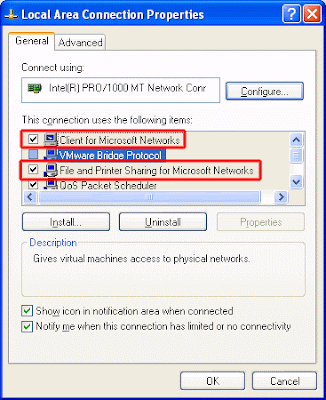
    • Kindly ensure that your Local Area Connection Properties
    (Start -> Control Panel -> Network Connections -> Local Area Connection) has checked (selected) the following:
    1. Client for Microsoft Networks
    2. File and printer Sharing for Microsoft Networks
    Using drag and drop method
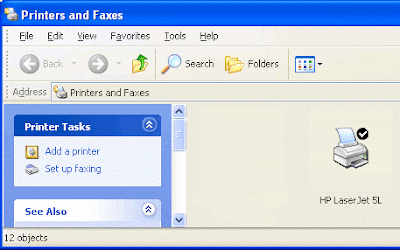
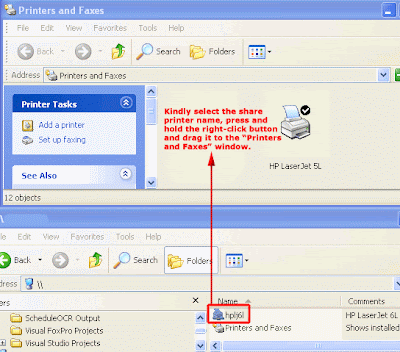
    1. In your computer/notebook, kindly click Start -> Printers and Faxes.

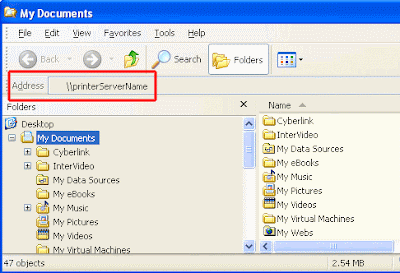
    2.Kindly click Start -> All Programs -> Accessories -> Windows Explorer to open a windows explorer window.

    3.At the Windows Explorer window Address bar, kindly types the dedicated print server name using the \\printServerName format and hit the [ENTER] key to start connecting to the remote print server.


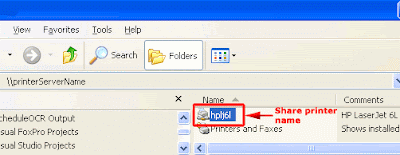
    4.After about 3 to 8 seconds (depending on your network connection speed), you should be able to see the share printer name of that dedicated print server. If not, kindly ensure that the remote print server is powered on and try to establish the connection again.


    Simply double-click on the remote share printer name to install it to your computer. You can skip step 5.

    5.Kindly select the share printer name, press and hold the right-click button and drag it to the “Printers and Faxes” window. Release the right-click button and click the "Install" option to start installing the printer drivers to your computer/notebook.


    6.Kindly repeat step (1) to (5) to install other printers (if any) to your computer/notebook.
    After you have connected to a shared printer on the network, you can use it as if it was attached to your computer/notebook.

    Notes:
    Before submitting your print job, please ensure that you have

    1. already login to the NUS network (recommended) using wired connection. If you are using wireless connection (NUSOPEN), please login to the WebVPN first before trying to search for the remote print server in NUS and
    2. the dedicated print server and the printer that connected to it are both power on.
    This is because your print job is submitted from your computer/notebook to the dedicated remote print server through the NUS network. Upon receiving your print job request, the dedicated remote print server will send it to the printer that connected to it to begin printing.

    Monday, October 10, 2011

    The Architectural trends in today’s Microprocessor.

    Introduction to Today’s Microprocessor trends

    From their humble beginning 25 years ago, microprocessors have proliferated into an astounding range of chips, powering devices ranging from telephones to supercomputers. Today, microprocessors for personal computers get widespread attention--and have enabled Intel to become the world's largest semiconductor maker. In addition, embedded microprocessors are at the heart of a diverse range of devices that have become staples of affluent consumers worldwide.

    The past decade has seen the evolution of microprocessor packaging from a simple protective scheme to a complex combination of different elements that enable microprocessor performance while still providing the basic function of protection. Packaging today's microprocessor on the one hand entails tailoring the package to enable microprocessor performance, a complex task considering the rapid rate of microprocessor performance growth. This challenge is in terms of schedule and technical complexity. On the other hand, the package forms the interface between the microprocessor and the external world of the motherboard and the computing system. In this capacity, package design must allow for an easy interface and must meet a diverse set of form factor requirements.

    The package provides a conduit for the microprocessor through a space transformation allowing small-scale features on the silicon to be electrically connected to the external environment. This is a challenging geometrical problem and requires that packaging interconnection densities must closely track the evolution of microprocessor interconnection densities. In connecting the die to the motherboard, the package must also ensure that the connections do not unduly inhibit the microprocessor performance by introducing unnecessary electrical impediments usually referred to as package “parasitics.” As microprocessors have evolved, they have increased in speed, which in turn needs increasingly sophisticated power delivery schemes. Another consequence of microprocessor evolution has been increasing power dissipation. Package design must now provide a path for thermal dissipation, requiring a better understanding of the thermal characteristics of packaging materials and design. Package design also requires a good understanding of the structural characteristics of the package to ensure it is designed for reliability and robustness. Attention is increasingly focussed today on understanding the electrical, thermal and mechanical characteristics of packaging to optimize all these aspects.

    The package is also the interface that connects the microprocessor to the motherboard. In this capacity it must have a compatible interface to allow for easy acceptance on the motherboard as well as the system design. The form factor of the package is a critical element for easy interface to the motherboard. The requirements are usually different in different market segments and often drive the need for form factors that are tailored to these different segments. For instance, the height of the package is critical to enable a microprocessor in a mobile market where a slim and low weight package is critical to success. On the other hand, the ability to dissipate high power, and hence features that enables this, are critical in a server or desktop market segment. Cost, compatibility and fit within the computer system are key parameters that must be designed for in making a microprocessor successful. This challenges us into concurrently developing multiple solutions and technologies geared towards specific market segments.

    Aside from the challenges of package design, there is a need to develop efficient and cost-effective manufacturing processes that allow us to meet the schedule and volume demands of today's market places. These have presented us with interesting challenges in understanding the manufacturability, testability and reliability of packaging. Some of these issues are discussed in greater detail in this issue.

    MAJC is an example of the design architecture of today’s microprocessor. We can easily related to the current trend by analysing the architecture of MAJC .

    MAJC (pronounced "magic") is an acronym for "Microprocessor Architecture for Java Computing." MAJC is a microprocessor architecture designed to meet the broadband demands of the 21st century. Addressing the challenge of high bandwidth and the need for state-of-the-art computational performance, MAJC architecture is characterized by:
    • Scalability to take full advantage of advances in semiconductor technology.
    • Broad scalabilty to systems with large numbers of processors.
    • A new standard of performance for applications with DSP or New Media computational needs.
    • Focus on bandwidth throughput.

    Processor Needs into the 21st Century
    Several microprocessor trends were identified and accommodated in the design of the MAJC Architecture:
    • Convergence of communication media and computers (audio, video, and data) require processors to compute information at wire speed.
    • Advancements in semiconductor technology will provide rapidly-increasing resources on each microprocessor chip.
    • As microprocessors are used in increasingly disparate applications from smart cards to supercomputers there is great value in the ability to create a wide span of implementations from a given processor architecture.
    • Software, over time, will become independent of specific instruction sets; Just-In-Time (JIT) compilation techniques are expected to predominate for general-purpose processors and eliminate binary compatibility issues.
    • Bandwidth between processors, memory, and I/O devices needs to be available to move information in real-time.
    • The content processed by computers is becoming increasingly media-rich; DSP-like functions are required to process this media content.

    Features of Today’s Microprocessors.
    • Modular Architecture
    To support the creation of a wide range of implementations the architecture supports modular implementations. A basic implementation might comprise a single processor unit with four functional units. By replicating those design elements, an implementation can be built that includes a few or even hundreds of processors, each with four functional units, each of which can operate on many data items simultaneously with parallel-operation (SIMD) instructions. Conversely, a tiny application-specific implementation can be derived from the basic one by trimming the complement of functional units down to one or two and/or removing hardware support for any instructions not needed in its target application.
    • Software Portability
    The architecture was designed to efficiently execute code generated by installation-time or just-in-time (JIT) compilation techniques. It may be the first commercial architecture designed without a requirement for binary compatibility between generations. This allows implementations to evolve over time without accumulating the baggage required to support old binaries, as traditional architectures have always done. Instead, software portability across implementations is obtained through use of architecture-neutral means of software distribution.
    • Multiple Levels of Parallelism
    The architecture provides the ability to exploit parallelism at many levels - at the data word level through SIMD instructions, at the instruction level through multiple functional units per processor, at the thread-of-execution level through support for multithreaded software, and at the system level through its intrinsic support for "MPs-on-a-chip" (multiple processor units per implementation). A implementation with more than one functional unit per processor unit provides MSIMD: multiple single-instruction multiple-data parallelism.
    • Multiple Processor Units per Cluster
    Although a MAJC implementation can be a single processor unit, the architecture explicitly incorporates the concept of multiple processors per implementation. Given 21st century semiconductor density, each such array of processor units or "processor cluster" can be implemented on a single chip. As semiconductor technology advances, clusters with more processors per chip can be implemented.
    • Multiple Functional Units per Processor Unit
    Every MAJC processor unit can issue multiple instructions simultaneously, one to each of its functional units. Most implementations are expected to provide two to four functional units per processor unit.
    • Multithreaded Software
    Execution of multithreaded software comes naturally given the architecture's ability to execute multiple threads simultaneously on multiple processor units. MAJC implementations with hardware support for vertical microthreading can efficiently execute multiple threads on each processor unit.
    • SIMD Instructions
    At the lowest level of parallelism, MAJC architecture provides SIMD (Single Instruction/ Multiple Data) or "vector" instructions. A SIMD instruction executing in a single functional unit could perform the same operation on multiple data items simultaneously.
    • Integral Support for Media-Rich Data
    The MAJC architecture is particularly well-suited for processing media-rich content because it directly supports common media data types and can process multiple simultaneous operations on that data. Processing power is multiplied on three levels: Single Instruction/Multiple Data (SIMD) DSP-like instructions in each functional unit, multiple functional units per processor unit, and multiple processor units per processor cluster.
    • Balanced Performance: Processor versus Memory and I/O
    A MAJC implementation is designed to utilize several techniques to balance processor speed with access to external memory and I/O devices:
    • 100's of general-purpose registers per processor unit, which reduce the frequency of memory accesses
    • Load-Group instructions, which increase bandwidth into the processor by simultaneously loading multiple registers from memory or an I/O device
    • Store buffering, which increases bandwidth out of the processor by optimizing Store operations initiated by software
    • Data Type-Independent Registers
    The general-purpose register file in a MAJC implementation is datatype-agnostic: any register can hold information of any data type and be accessed by any instruction. In particular, there is no distinction between integer and floating-point registers. This allows registers to be allocated as needed by each application, without restrictions imposed by hardware partitioning of the register set.
    • Instruction Grouping
    Grouping instructions across multiple functional units can be performed dynamically in hardware (as in a superscalar processor), statically by a compiler, or by some combination of the two. Rather than devoting valuable chip area to hardware grouping logic, MAJC relies primarily on software compilers to group instructions across functional units.
    • Data and Address Size
    A MAJC implementation may implement either 32- or 64-bit addressing and data operations, as dictated by the needs of its target applications.
    • Context Switch Optimization
    Process (task) context switch time can be reduced by using the architecture's "register dirty bits", which allow an operating system to minimize the number of registers saved and restored during a context switch.

    Memory Byte Order
    The MAJC architecture's native byte order is "big-endian"; that is, multibyte values are stored in memory with the most significant byte at the lowest address and the least significant byte at the highest address. However, a MAJC implementation can manipulate data stored in any memory byte-order (notably "little-endian"). The BYTESHUFFLE instruction can reorder bytes efficiently in an arbitrary manner. Also, an implementation may define an Alternate Space Identifier (ASI) dedicated to performing automatic byte reordering whenever corresponding Load and Store from Alternate Address Space instructions are executed.