Showing posts with label Social Networks. Show all posts

Sunday, May 13, 2012

What are the essential Facebook tips and tricks?


Don’t like getting tagged in someone else’s Facebook photo? Had it up to here with the ticker? Want to change the privacy settings for all your old posts in one fell swoop? Read on for 10 tips that’ll make life on Facebook easier—and more private.

How to make your Facebook news feed default to “most recent” stories first?
Tired of seeing “highlighted” stories at the top of your Facebook news feed? Here’s a browser bookmark that’ll keep your Facebook feed in chronological order.


You can limit who sees the posts from "Open Graph" Facebook apps right before you install the app onto your account.

How to keep Facebook’s new “Open Graph” apps from (over-)sharing your activity?
Want to keep your reading, listening, and streaming habits to yourself? Here’s how to stop Facebook’s new, oversharing Open Graph apps from spilling the beans.

How to restrict access to all your old Facebook profile posts?
You can lock down access to all your wall posts in just a few clicks—but once you do it, there’s no easy way to undo it.

You can always bring the ticker come back, if you really miss it.

How to completely hide the Facebook ticker?
Some people love it, most seem to hate it, but there was no real way to completely hide the Facebook ticker—well, until now, anyway.

How to send a photo from your iPhone directly to Facebook?
Wish you could post a fresh snapshot from your iPhone onto your Facebook wall without having to open the Facebook app? Here’s how to do it.


If you haven't turned "Timeline Review" on yet, you should—pronto.


How to turn on Facebook’s “Timeline Review” feature?
Facebook’s improved privacy controls let you check any photo you’ve been tagged in before it pops up on your Timeline—but you’ll have to tweak your settings first.


How to “unfriend” a Facebook friend without really unfriending them?
Want to keep a marginal Facebook pal at arm’s length without actually hitting the unfriend button? Read on for a couple of ways to do it.


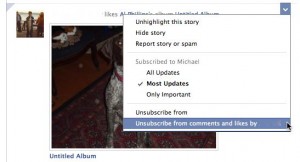
Just unsubscribe from a friend's comments and "likes" to keep random photos out of your news feed.

3 ways to declutter your Facebook news feed
Seeing too many links and photos in your Facebook news feed from perfect strangers? Read on for three ways to whip your bloated news feed into shape.

4 ways to keep Facebook comments private
Don’t like the idea that everyone (or seemingly everyone, anyway) on Facebook can see the comments you’ve left on your friends’ posts? You’re not alone.

How to control who can post stories to your Facebook Timeline—and who can’t?
Don’t want any and all of your Facebook friends marking up your Timeline—or sifting through Timeline stories posted by others, for that matter? No problem.

Monday, May 7, 2012

What is “Google Play”? - A new home for Android apps, music, videos, and books


So much for the Android Market. In its place: “Google Play,” Google’s new digital hub for Android apps, games, and media.

In a blog post Tuesday, Google said it was consolidating the Android Market, Google Music, and Google eBookstore sites into Google Play to reduce the “hassle” of finding and organizing apps, tracks, videos and books for your various Android devices.

You can still browse for apps just as before, with the main app product pages (like this one) serving up product descriptions, screenshots, user reviews, and buttons for buying and/or installing a given app to your Android device.That’s the theory, anyway. In practice, Google Play (which you can check out right here) looks an awful lot like the old Android Market.

Up at the top of the Google Play page, just above a rotating carousel of promos, you’ll find tabs for “My Music” (the new home of Google Music), “My Books” (which replaces the Google eBookstore), and “My Movies” (for video rentals and purchases).

OK, so what happens to your old apps from the gone-but-not-forgotten Android Market, or your Google Music tune collection? Don’t worry—they’re still there, just where you left them. Indeed, the books and albums I bought from Google Music and the eBookstore are present and accounted for, except now they’re sitting under a “Google Play” banner.

What will be changing, though, is the Android Market app on your Android smartphone or Tablet. Google says it’ll be upgrading the app to the “Google Play Store” app in “the coming days.”

Google is also promoting the Google Play launch with daily discounts during the next week;check out this blog post for more details.

So, what do you think: will putting all of Google’s Android wares under a single “Google Play” roof make it easier to shop for apps, music, videos and books? Or will you miss the Android Market? Let me know what you think!

Wednesday, May 2, 2012

How to download all your Facebook posts, photos and videos to your PC?


Want a copy of each and every status update you’ve ever posted to Facebook, along with all your photo albums, videos, chats, and even comments? All you have to do is ask.


Facebook has a “Download Your Information” feature that will pack all your shared content into a digital trunk of data, which you can then download to your desktop.


The file includes pretty much everything you’ve ever shared on Facebook—we’re talking wall posts, comments on your wall posts, photos, video clips, Facebook messages, chat transcripts, and the names of your friends.

Facebook has also announced that starting soon, the information packed into your digital Facebook archive will include any previous names you’ve used on Facebook, all your prior friend requests, and even the IP addresses of every computer, smartphone or tablet you’ve ever used to log into your Facebook account.

So, what isn’t in your Facebook archive? The personal information of your Facebook friends (except for those who allow their email addresses to be shared), as well as their own posts and photos. Also not included in the archive: comments you’ve made on other people’s posts.

Requesting an archive of all your Facebook information is easy. Here’s how it works:

  • From any Facebook page, click the little down-arrow in the top-right corner and select “Account Settings” from the drop-down menu.
  • Next, find and click the “Download a copy of your Facebook data” link at the bottom of the “General Account Settings” page.
  • You should land on a page that describes all the information your download will include, along with a warning to think twice before sharing your Facebook archive with just anyone. Ready to proceed? Then click the green “Download” button.
  • Got any laundry to do, checkbooks to balance, or lawns to mow? Now’s the time, because it could take anywhere from a few minutes to several hours for Facebook to collect and pack up all your shared data. (For me, five years of posts and photos took about an hour and a half.)
  • Once your archive is finally ready, Facebook will send you an email. Click the link in the message, and you’ll arrive at a Facebook page where you’ll be asked to re-enter your password.
  • All set? Then go ahead and click the green “Download Archive” button to download the file (which should be labeled with your Facebook user name) to your system. Remember to note the location of the file on your hard drive; to make locating the archive easier, you might want to download it straight to your desktop.
  • Open the archive folder, then double-click the file named “index.html.” Your web browser will open, and you’ll see a bare-bones page with your Facebook profile, complete with links to your wall posts, photos, videos, friends, and Facebook messages. Keep in mind that these pages aren’t living on the Internet; instead, they’re sitting “locally” on your computer’s hard drive, and only you can see them (well, unless you share them with someone else, that is).
  • To find your actual photo and videos files, just open the “photos” and “videos” folders in your downloaded Facebook archive, and voilĂ —there they are, ready to be clicked and dragged anywhere on your hard drive.

Now that you’ve downloaded an archive of your Facebook info, what if you want to wipe all your data, photos, and videos off Facebook? To do so, you’ll need to delete (and not just deactivate) your Facebook account.

Saturday, April 28, 2012

How to Place Facebook Chat on Firefox Sidebar?

The coolest feature of the Facebook which permits you to send live messages, or in internet word, ping your friends is the Facebook chat. As it is the most frequently used feature of this great social networking site, therefore it deserves to be at the top. The chat can be placed at the Mozilla Firefox sidebar by following these simple steps:


1). At the top-most navigation of your page, you will find an option by the name of “Bookmarks”. Select “Organize Bookmarks” from this menu.


2). There you will find the tab by the name of “New Bookmark”.


3). On clicking “New Bookmark” it will ask for some information. Fill it according to the following:


Fill “Facebook Chat” in the space provided in front of the “Name” section.
Type the URL “http://www.facebook.com/presence/popout.php” in the space provided in front of “Location” section.
Also check the check box as shown


Facebook Video Calling: How To Set Up & Start a Video Call - Simple Guide

Facebook has finally started filling up the missing blanks on their social network as an answer to Google Plus Project. Together with Skype, Facebook has launched its first ever Video Calling option on there website. Facebook Users can now not only chat but they can now do video chat with each other


How do I set up video calling?

Three Simple Steps
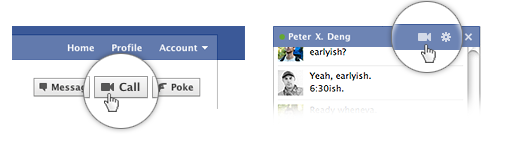
  1. To call a friend, click the video icon at the top of your chat window.
  2. Simply click the “Set Up” button and follow the easy instructions for how to set up video calling on your favorite browser.
  3. Once installed successfully the video call will start automatically or you can ring back your friend by clicking the video call button at the top right corner of your friends profile
How do I start a video call with a friend?

Again three Simple steps we provide Easy method For Our Users

  • Visit your friend’s profile and click the “Call” button in the top right corner. You can also click the video icon at the top of the chat window.
  • When your friend answers, be patient and wait for sometime till both your web cams are inter connected.
  • If your friend is unavailable or offline, you can leave a video message. That's indeed more like Yahoo's Voice service...

Monday, December 5, 2011

How to Optimize Your LinkedIn Profile for the Job Hunt ?

About 120 million people now use LinkedIn, and 1 million more join every week. But how many users have a professional profile that’s actually attracting interest from hiring companies? Research my company has conducted shows that 87% of companies use LinkedIn for recruiting, so it’s a good bet that your next employer will look for talent there.

But how easy are you to find? With all those millions of profiles available, recruiters use specific search terms and network connections to narrow the number of prospects. However, it’s still worth taking the time to tune up your profile so that it pops. Furthermore, using the new “Apply with LinkedIn” plugin, you can also use link your profile to job applications on many company career sites.

Here are some tips to maximize the likelihood a recruiter with the perfect job contacts you first.

1. Profile Headlines: Simple and Direct
The headline is one line of text that appears underneath your name and in search results. In your headline, avoid overused buzzwords or over-the-top phrases (“game changer” or “change agent” are two that come to mind).

Your headline doesn’t have to include your job title, but it should be clear and concise. Use it to describe the qualities you can offer, and position yourself for relevant job opportunities without inflating your experience. There are even times when it’s smart to downgrade a title. Say that you are a VP at a small company, but would happily consider a director title at a larger company — it may be strategic to leave out the “VP” title in your headline.

2. Summary and Experience: Keep Your Story Tight


People will scan your profile just as they do a news story. When I worked as a reporter, we used the inverted pyramid method to structure a story, making sure all the important facts were stacked near the beginning. You too should answer the who, what, when, why and how in your profile summary section. Point to results and quantify your impact to render your record more concrete. If you’ve written a compelling summary, your audience will read on.

Underneath the summary is a section for specialties. This area frequently contains keywords used to make profiles findable. Optimize your profile for search engines (SEO), but not too much. The Google algorithm is too smart for keyword stuffing — and so are recruiters. If you include five lines of special skills in this section, chances are you won’t be great at any of them.
Interest will wane further down the page, so spend your time making the top sections of your profile (summary and recent experience) the most substantial. Although in most cases, not every job you’ve held needs a detailed description.

3. Company Name: What Does It Do?
Recruiters and hiring managers search by industry terms as well as skills. If your employers haven’t all been household names, describe those companies in a couple of words. That way, recruiters will know whether you’re right for a job in fashion or social gaming, for example. If a former employer has been purchased since you left, and no longer exists, use the name of the acquiring company instead.
Briefly describe ways in which that company was successful: for instance, a market share leader in a $6 billion industry, the leading patent holder or the highest-rated for customer service. If you worked in a very large company, focus on your particular division or project to help readers understand your experience better.

4. Recommendations: Don’t Go Overboard
It’s good to have a few meaningful recommendations, but employers take these with a grain of salt. Promote the most current or best recommendations and hide extras to prevent profile clutter.
Public positive recommendations are easy to obtain, not to mention often too generic to be very insightful. Hiring managers can easily follow up with the people who supplied those recommendations and see if their offline comments match what’s online.
If you’re early in your career, get one or two recommendations from professors, classmates or current colleagues. If experience as a summer lifeguard isn’t relevant to your current job search, ask contacts to speak to your work ethic rather than your backstroke.

5. Connections and Groups: Say Yes and Say Something


It’s an unspoken rule that people accept most connection requests on LinkedIn. Why? You may find out about an opportunity through those connections. And search results are sorted by the closest to furthest degrees of connection — so you’ll be closer to the top of the pile when your connections perform searches.

To raise your visibility among your connections, share news about the industry or relevant companies. Then join a few professional groups that interest you. Recruiters often mine groups for prospects, and answering questions or participating in discussions shows your expertise and engagement.

Bonus Tip: Activity Settings
If you’re worried what your current employer might think about all this activity, change your “activity broadcasts” setting before making profile updates so your current contacts don’t see them in your feed. Too often I have heard people comment when they see someone has updated their LinkedIn profile, that “they must be looking for a job.”
But positioning yourself for potential new opportunities shouldn’t surprise any employer. When my company asked employers how long they expect new hires to stay, one-third answered two years or less. Make sure your LinkedIn profile is ready before you are.

Thursday, October 27, 2011

Free download Facebook Video Player(for Chrome): Watch Videos & Continue Reading Posts


Watching videos on Facebook can become really frustrating at times. You play a video, and have to remain stuck at the same part of the page until it finishes, since if you scroll away to continue your social activities on Facebook, you lose sight of the video. Facebook Video Player is an extension for Google Chrome that enhances your video-watching experience on the social-networking giant by allowing you to play Facebook videos in a fixed location, to the right side of the page. Using this extension, you no longer have to pause your commenting or wall-posting, since you’ll always have the video in front of you. More after the break.
Once you’ve installed the extension, it automatically starts working when you play a video on Facebook. The video will be displayed in a fixed block to the right of the page, along with support for multiple videos. While you can continue to browse Facebook and watch the videos at the same time, if you decide to close a video, just hit the cross displayed on top of the video.

Facebook Video Player for Chrome may find particular popularity among the video buffs on the said website. This is the initial version of the extension, so we can expect quite a lot of new features in future releases. The link below will find this free extension for you in Chrome Web Store.

Monday, September 26, 2011

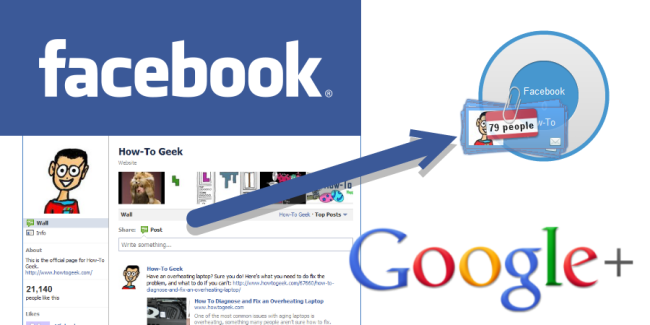
How to transfer all your stuff from Facebook to Google+?


If you have a lot of time and information invested in Facebook, it’s not easy moving to a new social network. Here are a few tips on moving your information from your Facebook account to your shiny new Google+ account.
Moving social networks isn’t the easiest thing to do, but luckily there are a few tools we can use to migrate pictures, videos, and friends. Wall posts and messages don’t make sense to migrate between networks so we are going to leave those out.

Export Facebook Information

Start by downloading all of your Facebook information. To do that, log into Facebook and go to account settings in the upper right corner.
On the settings tab click “learn more” next to “download your information.”
Enter your password and click continue; you will be sent an email once your download is ready.
Once you receive the email, click the link to download a zip of all of your files.
Extract the files and open the index.html file to verify all your information is there.

Import Photos

Google+ uses Picasa web albums to share pictures. To get started you need to download Picasa from the link below.
Once installed, open Picasa and add the Facebook photos folder you just downloaded to picasa.
Set Picasa to scan the folders once, and then let it do the import.
Once the pictures have finished importing into Picasa, find the albums and select Sync to Web on the right.
A pop-up window will open and ask you to sign in to web albums. Log in with your Google+ account and a second popup will ask you to verify your upload settings. Click change settings and modify the settings to you liking. Make sure you check the box to “use the above settings” otherwise you will be asked every time.
We’d recommend setting your new album visibility to private by default. You will be able to change the sharing settings from Google+ later, and this prevents you from making any embarrassing photos public.
Now go back to Picasa and click sync; your photos will be uploaded in the background.

Share Your Photos on Google+

After your pictures have uploaded, log into Google+ and click on photos in the top banner.
Navigate to your albums on the left.
Open the album you just uploaded and click share album at the top.
The share album button will automatically make your album public and post a link to it in your stream.
If you don’t want the album to be public, you can remove the Public circle and instead add some of your own. This will still make a post in your stream, but it will only be visible to those you have shared it with.
It is possible for someone you shared an album with to re-share that with the public so make sure you only share with people you know and trust.
If you don’t want the album posted to your stream, you can also click the edit button from the main album page which will change the sharing settings without posting the album in your stream.

Import Your Videos

Importing videos is a lot less automated than pictures. To import your Facebook videos browse to your Facebook export you downloaded earlier and there will be a videos folder.
Log into your Google+ account and click on your profile -> videos.
Click upload new videos on the right and drag the videos from your computer to your browser.
Once the videos are done uploading you can name, create, and share the album from Google+.

Import Your Facebook Friends

Go to login.yahoo.com and sign in with your Facebook account or a yahoo account if you already have one.
Confirm access and sign in with your facebook account and then go to address.yahoo.com. Click tools and import from the dropdown.
Select Facebook from the provided options.
After you confirm access to your contacts, the import will happen automatically.
Next export your contacts to a .csv file with the tools menu.
Export your contacts to Microsoft Outlook, confirm the capcha and save the file.
Now login to Gmail, click contacts -> more actions -> import.
Browse to the .csv file you just downloaded and select it for importing.
Specify a new group to import the contacts into, if you chose that option, and the contacts should import without any problems.
Go back to Google+ and your newly imported contacts will show up under find and invite.
Add friends to circles and send invites to them if they aren’t already using Google+.

Wednesday, July 27, 2011

Android applications free download-Facebook for Android

Share and stay connected with your friends with the Facebook for Android app.
Facebook for Android
Facebook for Android makes it easy to stay connected and share with friends. Share status updates from your home screen, chat with your friends, check out your News Feed, review your upcoming Events, look at your friends’ walls and user info, check in to Places to get Deals, upload Photos, share links, check your Messages, and watch videos.

Application Screenshots


What's New

  1. Improved Pages support
  2. View the full list of Pages you Like as well as Pages you admin
  3. Post as a Page you admin
  4. Tag Pages in status updates using "@"
  5. Various bug fixes

Free and quick download