Thursday, May 19, 2011

How to run Windows XP software in Microsoft Windows 7 XP Mode environment???

Microsoft Windows 7 XP Mode environment uses Microsoft Windows Virtual PC technology to run those old Windows XP software seamlessly in Windows 7 Operating System (OS), and launch them from the Windows 7 desktop with just a single click.


Requirements to run Windows XP Mode with Windows Virtual PC in Windows 7 OS:
  • Windows XP Mode is only available for both 32 bit and 64 bit versions of Windows 7 ProfessionalEnterprise or Ultimate OS with at least 2 GB of memory (32 bits OS) or 3 GB of memory (64 bits OS).
  • To use Windows Virtual PC (available for both 32 bit and 64 bit versions of Windows 7 Ultimate, Enterprise, Professional, Home Basic and Home Premium), your processor must support processor virtualization extensions such as Intel Virtualization Technology (VT), AMD-V or VIA VT. You might need to enable these processor extensions in the BIOS as this setting is often not enabled although your processor supported Intel VT, AMD-V or VIA VT. After you had enabled the processor virtualization extensions in BIOS, you must do a hard reboot by fully power down the computer and then start it again.
    Sometimes users will get an error message that the processor virtualization is not enabled despite enabling processor virtualization in the BIOS and completely powering down the computer. This is a known issue with Trusted Execution Technology (TXT) and virtualization. Hence, please also disable the TXT in the BIOS.
    To check whether your processor support Intel VT, AMD-V or VIA VT, or if you receive the message "This computer does not have hardware-assisted virtualization" or "Hardware-assisted virtualization is not enabled on this computer", please download and run the "Hardware-Assisted Virtualization (HAV) Detection Tool".

  • 2 GB for installing Windows XP Mode. Additional 15 GB of available hardisk space for a virtual Windows environment.

Procedures to install Windows XP Mode and Windows Virtual PC in Windows 7 OS:
  1. Please power on your Windows 7 OS pc/notebook and go to your pc/notebook BIOS.
    • For Fujitsu LifeBook T4220 notebook, kindly press F2 to enter BIOS. Kindly click "Advanced" -> "CPU Features". Please enable the "Virtualization Technology". Then, kindly press "Exit" -> "Exit Saving Changes" from the BIOS.
    • For Dell Optiplex 780 pc with A04 BIOS, kindly press F2 to enter BIOS. Kindly click "Virtualization Support" -> "Virtualization". Please enable the "Enable Intel Virtualization Technology" and click the "Apply" button. Then, kindly click "VT for Direct I/O". Please enable the "Enable Intel VT for Direct I/O" and click the "Apply" button. Kindly click the "Exit" button to exit from the BIOS.
  2. Assume you are already running Windows 7 Enterprise SP1 x86 OS. Please surf "Windows Virtual PC" to download Windows XP Mode (492,597,008 bytes) and Windows Virtual PC installers according to your Windows 7 OS types. You will need to install a Windows Activation Update software from Microsoft website to verify that you have a non-pirated copy of Windows OS installed before you are allowed to download the installers.

  3. After downloading the Windows XP Mode and Windows Virtual PC installers, kindly install Windows XP Mode first by double-clicking the file WindowsXPMode_nn-NN.exe (where nn-NN is the locale code, for example, en-US) and then completing the wizard that opens.

    After finishing installing the Windows XP Mode, kindly install Windows Virtual PC by double-clicking either the files Windows6.1-KB958559-x86.msu or Windows6.1-KB958559-x64.msu, depending on your processor type. The installation will prompt you whether you want to install the Windows software update for Windows (KB958559), kindly click "Yes". At the end of the Windows Virtual PC installation, [save your work (if any) first] kindly click the "Restart Now" button to restart your pc.

  4. In your Windows 7 environment, kindly click "Start" -> "All Programs" -> "Windows Virtual PC" -> "Windows XP Mode". Kindly click the "Start the virtual machine" button.

    After accepting the Microsoft Windows XP Mode License Agreement,
    • under the "Installation folder and credentials", please change your installation folder from the default "c:\Users\UserName\AppData\Local\Microsoft\Windows Virtual PC\Virtual Machines" directory to "d:\VirtualMachines". Storing your Virtual Machines files in d:\ drive is recommended to prevent lost of your Virtual Machines files in future if your OS needs to be reformated and reinstalled.

      Under the "Create credentials", kindly key in the password twice for the default user name calls XPMuser that has administrator privilege in Windows XP Mode virtual machine. Please ensure that you remember the password provided during the setup process because you will need it to log on to the Windows XP Mode virtual machine. Please leave the "Remember credentials" (for automatically log on to the Windows XP Mode virtual machine) uncheck and click the "Next" button.
    • Click "Help protect my computer by turning on Automatic Updates now" and click the "Next" button.
    • On the "Setup will share the drives on this computer with Windows XP Mode", click the "Start Setup" button.


    After the setup of the Windows XP Mode virtual machine is completed, you will be presented with a "Windows XP Mode - Windows Virtual PC" window. You can start installing and running your old Windows XP software within this Windows XP Mode virtual machine (also known asDesktop Mode) exactly as if you were running them on a Windows XP-based PC. Please make sure that during your installation of the old Windows XP software in the Windows XP Mode virtual machine, your installation is set for "everyone" (All Users) usage so that your old Windows XP software link(s) that are stored at \Documents and Settings\All Users\Start Menu\Programs will be automatically publish in your Windows 7 OS Start Menu under "Start" -> "All Programs" -> "Windows Virtual PC" -> "Windows XP Mode" -> "Windows XP Mode Applications".

    If you don't want an old Windows XP software (eg: an anti-Virus software) in the Windows XP Mode virtual machine to automatically publish its link(s) to the Windows 7 OS Start Menu, you can either
    • delete that old software link from the \Documents and Settings\All Users\Start Menu\Programs directory in the Windows XP Mode virtual machine or
    • add that old software path into the VPCVAppExcludeList in the Windows XP Mode virtual machine Registry Editor (regeditor regedt32) under\HKEY_LOCAL_MACHINE\SOFTWARE\Microsoft\Windows NT\CurrentVersion\Virtual Machine\VPCVAppExcludeList. You have to restart the Windows XP Mode virtual machine for the registry changes to take effect.

Running Windows XP applications in Seamless Mode

Windows XP Mode virtual machine for Microsoft Windows 7 enables you to run your old Windows XP software directly from the Windows 7 desktop in what is called “Seamless Mode” . This means that once you have installed a software in Windows XP Mode virtual machine, it will also appear in your Microsoft Windows 7 "All Programs" menu, along with all of your other Windows 7 applications.
Hence, you do not have to open the Windows XP Mode desktop environment in order to run these old Windows XP software. Simply launch them directly from the Windows 7 Start Menu (or from the Windows 7 desktop, if you have already created a desktop shortcut there for that software). Launching this old Windows XP software also means launching the Windows XP Mode virtual machine. Thus, it may take a while for the software to complete this process. To speed up the boot up process of the Windows XP Mode virtual machine, you should put it into “hibernation” mode when not in use. After the Windows XP Mode virtual machine is launched, the old Windows XP software will perform exactly like any other applications on the Windows 7 desktop.

Hibernation vs Log-Off

When you are through working with the Windows XP Mode environment (Desktop Mode), you can put it into “hibernation” mode simply by clicking on the "Action" -> "Close" button in the upper left corner.

If it is the first time that you have run a Windows XP application in Desktop mode, you may be asked to log-off before the Windows XP virtual machine completes the hibernation process. Once you have logged on again, you can continue to work in the regular Windows 7 mode, Windows XP Seamless Mode, or Windows XP Desktop Mode whenever you like.

Shutdown Windows XP Mode environment (Desktop Mode)

When you are through working with the Windows XP Mode environment (Desktop Mode), you can put it into “shutdown” mode simply by clicking on the "Ctrl+Alt+Del" (upper right corner) -> "Shut Down" -> "Shut down" -> "OK".

Change the Windows XP Mode virtual machine settings

Kindly ensure that your Windows XP Mode virtual machine was shutdown. In your Microsoft Windows 7 environment, kindly click "Start" -> "All Programs" -> "Windows Virtual PC". Kindly select the Windows XP Mode virtual machine and click the "Settings" button. It is recommended to change the memory for your Windows XP Mode virtual machine to at least 512 MB so that it can run smoothly. Please note that the amount of memory that can allocate to the Windows XP Mode virtual machine is limited by the available memory on your physical machine.

Virtual Machine file types and backup/restore your virtual machine

Please surf "Various File Types for Virtual Machine Backup in Windows Virtual PC" for more information.

Reference:

String Matching Algorithms


The problem of matching patterns in strings is central to database and text processing applications. The problem will be specified as: given an input text string t of length n, and a pattern string p of length m, find the first (or all) instances of the pattern in the text.

We’ll refer to the ith character of a string s as s[i] (this syntax makes a lot of sense if you think of a string as an array of characters).
Brute force

The simplest algorithm for string matching is a brute force algorithm, where we simply try to match the first character of the pattern with the first character of the text, and if we succeed, try to match the second character, and so on; if we hit a failure point, slide the pattern over one character and try again. When we find a match, return its starting location.
Java code for the brute force method:

for (int i = 0; i < n-m; i++) {
int j = 0;
while (j < m && t[i+j] == p[j]) {
j++;
}
if (j == m) return i;
}
System.out.println(‘‘No match found’’);
return -1;

The outer loop is executed at most n-m+1 times, and the inner loop m times, for each iteration of the outer loop. Therefore, the running time of this algorithm is in O(nm).

Boyer-Moore

On first glance, one might think that it is necessary to examine every character in t in order to locate p as a substring. However, this is not always necessary, as we will see in the Boyer-Moore algorithm. The one caveat for this algorithm is that it works only when the alphabet (set of possible elements of strings) is of a fixed finite size. However, given that this is the case in the vast majority of applications, the Boyer-Moore algorithm is often ideal. As we will see, it works fastest when the alphabet is not too large and the pattern is fairly long (i.e. not many orders of magnitude shorter than the input).
The key to not examining every character in the text is to use information learned in failed match attempts to decide what to do next. This is done with the use of precomputed tables, as we will see shortly.
Perhaps the most suprising feature of this algorithm is that its checks to see if we have a successful match of p at a particular location in t work backwards. So if we’re checking to see if we have a match starting at t[i], we start by checking to see if p[m-1] matches t[i+m-1], and so on.


The reason for this backwards approach is so we can make more progress in case the attempted match fails. For example, suppose we are trying to match the pattern “ABCDE” at position i of the input t. but at t[i+4], we find the character ’X’. ’X’ doesn’t appear anywhere in “ABCDE”, so we can skip ahead and start looking for a match at t[i+5], since we know that the ’X’ prevents a match from occurring any earlier. In order to get the information that we need out of each failed match,  the algorithm pre-processes the input pattern p and generates tables (some- times called “jump tables”, since they indicate how far ahead in the text to “jump”). One table calculates how many positions to slide ahead in t based on the character that caused the match attempt to fail, and the other makes a similar calculation based on how many characters were matched successfully before the match attempt failed.
The first table is easy to calculate: Start at the last character of the search string with a count of 0, and move towards the first character; each time you move left, increment the count by 1, and if the character you are on is not in the table already, add it along with the current count (so, e.g., you could use a hash table with characters as keys and the “shifts” that you are calculating as values). All other characters (those not appearing in p) receive a count equal to the length of the search string. (Here we see why a fixed finite alphabet is essential.)

For example, for the search string ABCABDAB, this “shift” table is:
Character             Shift
B                             0
A                             1
D                             2
C                             5
all other chars        8


The second table is slightly more difficult to calculate: for each value of i less than m, we must first calculate the pattern consisting of the last i characters of the search string, preceded by a mis-match for the character before it; then we must find the least number of characters that partial pat- tern can be shifted left before the two patterns match. This table is how we account for the possible repetitions within the search string.

For example, for the search string ABCABDAB, the “skip” table is:
i           Pattern           Shift
0          B                         1
1          AB                      8
2          DAB                   3
3          BDAB                 6
4          ABDAB              6
5          CABDAB           6
6          BCABDAB        6
7          ABCABDAB     6


Here is some pseudocode for this algorithm, supposing that the preprocess- ing to generate the tables has already been done.

public int BoyerMoore(String t, String p) {
int n = t.length();
int m = p.length();

int i = 0;
while (i <= n - m) {
int pos = m - 1;
while(p[pos] == t[i+pos]) {
if(pos == 0) { return i; }
pos--;
}
i += max (skip((m-1)-pos) , pos - ((m-1) - shift(t[pos+i])) )
}

print(‘‘pattern not found’’);
return -1;

The preprocessing to generate the tables takes Θ(m + σ) time, where σ is the size of the alphabet (one pass through p, plus adding an entry for each other char in the alphabet), and Θ(σ) space. We could reduce these both to Θ(m), but at the expense of the constant- time access that we enjoy with the current implementation (since it would then take m time to search for a character not in the table).
The best and average-case performance of this algorithm is O(n/m) (since only 1, or some small constant number out of every m characters of t needs to be checked). So, somewhat counter-intuitively, the longer that p is, the faster we will likely be able to find it.
The worst-case performance of the algorithm is approximately O(nm). This worst case occurs when t consists of many repetitions of a single character, and p consists of m − 1 repetitions of that character, preceded by a single instance of a different character. In this scenario, the algorithm must check n − m + 1 different offsets in the text for a match, and each such check takes m comparisons, so we end up performing just as many computations as for the brute-force method.
In practice, in typical string-matching applications, where the alphabet is large relative to the pattern size, and long repetitions of a single character or a short pattern of characters is not likely, Boyer-Moore performs very well.

Karp-Rabin

The Karp-Rabin algorithm searches for a pattern in a text by hashing. So we preprocess p by computing its hashcode, then compare that hash code to the hash code of each substring in t. If we find a match in the hash codes, we go ahead and check to make sure the strings actually match (in case of collisions). Code for the algorithm:

public int KarpRabin(String t, String p) {
int n = t.length();
int m = p.length();

int hpatt = hash(p);
int htxt = hash(t[0..m-1]);
for(int i = 0; i < n; i++) {
if (htxt == hpatt) {
if (t[i..i+m-1] == p) { return i; }
htxt = hash(t[i+1..i+m]);
}
}
System.out.println(‘‘not found!’’);
return -1;

}

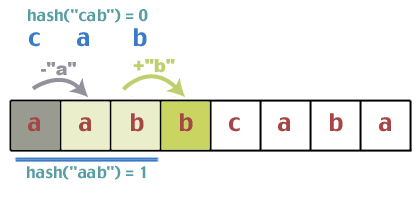
For efficiency, we want to be able to quickly compute hash(t[j+1...j+m]) from hash(t[j...j+m-1]) and t[j+m] (instead of naively computing the hash from scratch for every substring of t - this would take O(m) time, and since it is done on each loop, we would have total time of O(mn)). Hash functions for which we can compute in this more efficient way are called rolling hashes.
The best-case and average-case time for this algorithm is in O(m + n) (m time to compute hash(p) and n iterations through the loop). However, the worse case time is in O(mn), which occurs when we have the maximum number of collisions - every time through the loop, we find that the hashes match, but the strings don’t. With a good hashing function, this is unlikely.
Karp-Rabin is inferior for single pattern searching to many other options because of its slow worst-case behavior. However, it is excellent for multiple pattern search. If we wish to find one of some large number, say k, fixed- length patterns in a text, we can make a small modification that uses a hashtable or other set to check if the hash of a given substring of t belongs to the set of hashes of the patterns we are looking for. Instead of computing one pattern hash value hpatt, we compute k of them and insert them into a hashtable or other quick lookup structure. Then, instead of checking to see if htxt == hpatt, we check to see if htxt is in the table we built. In this way, we can find one of k patterns in O(km + n) time (km for hashing the patterns, n for searching).

Wednesday, May 18, 2011

Windows 8 Vs Windows 7


Microsoft will make at least four different versions of Windows 8 for devices with ARM processors, but you won't be running older Windows apps on any them, according to an Intel executive. Renee James, Intel's senior vice president and general manager of Software and Services Group, also reaffirmed thatWindows running on ARM devices will be focused on tablets and other mobile devices.
Version Fatigue
If you thought Microsoft produced too many versions of Windows 7 or Vista, it sounds like you haven't seen anything yet. It's too early to know for sure how Microsoft will package Windows 8, but it's unlikely the company will give up on offering six different of its trademark OS as it has with both Windows 7 and Vista. Add to that version mix four variations for ARM tablets and possibly netbooks, and you've got a recipe for confusion for the non-techie consumer.
Legacy Apps
Since ARM's architecture is different from Windows' x86 roots with Intel, it's not surprising that legacy apps wouldn't be available on the new devices. But legacy issues are usually a bigger problem for businesses than home users. So unless you're hoping to run Microsoft Word 2007 on an ARM-based netbook, you may not have to worry too much. Enterprises, on the other hand, may be less likely to use an ARM-based version of Windows if they have custom-designed legacy software; however, it's also possible third parties would come up with a legacy emulator for ARM devices if Microsoft doesn't.
ARM vs. x86
James said Intel isn't worried about competing against another chip design in the Windows universe -- basically Intel's exclusive turf for the past 20 years. Intel's x86 architecture will support both new and old Windows programs on Windows 8, and run on everything from Windows-based mobile devices to televisions and PCs.
Intel also knows it can't depend on Microsoft and the PC to guarantee the chipmaker's future. Intel chief executive Otellini recently said his company had overhauled its roadmap to meet the growing demand for mobile devices such as tablets and smartphones. Despite the popularity of its Atom chips for netbooks, Intel's current processors are considered too power hungry to guarantee the long battery life that newer mobile devices require. ARM processor designs, on the other hand, are being used on a variety of mobile devices such as Apple's iPad and iPhone as well as numerous Android devices.
t's not clear what Microsoft has in store for Windows 8, but current rumors suggest Windows 8 for mobile devices will include an interface based on elements of Windows Phone 7's Metro UI.
Microsoft in April demoed an early version of Internet Explorer 10 running on an ARM device.